Give your WordPress site its first task.
Connect the site you already have, add your agent to Slack or Telegram, and tell it what you need.
Connect your siteStart with 500 free credits. No credit card needed.
For one “find us” location, a Google Maps embed pasted into a Custom HTML block needs no plugin and no API key. Plugins earn their place when you need several markers, a store locator or a map in a classic widget area. When a Google-powered plugin map shows a grey box, the cause is almost always the API key, the Google Cloud project, billing or the referrer settings. The theme is rarely the problem.
A contact page with a grey box where the map should be, or a darkened map stamped “For development purposes only”, tells every visitor that nobody is looking after the site. It’s also one of the easiest things on a WordPress site to get wrong. “Map widget” can mean five different things, and they each have their own settings.
Here is what those five are, which one fits your page, how to add each, and how to find out why a map won’t load. If you’re still building the page the map will sit on, start with how to add pages in WordPress.
Start with the job, not the plugin. A single office address needs something much simpler than a dealer network with a radius search, and the simpler option has fewer ways to break.
| What you need | Simplest approach | Google API key? |
|---|---|---|
| One location on a contact page | Google Maps share-link iframe in a Custom HTML block | No |
| A map in a sidebar or footer | Custom HTML block in the widget area, or a plugin’s widget | Only for plugin widgets that use Google |
| Several markers, popups, categories | A map plugin with a block, widget and shortcode | Yes with the Google engine, no with OpenStreetMap or Leaflet |
| Store locator, radius search, filters | A store locator plugin or a full map plugin’s locator | Usually, for address search |
| A map built from your own data (listings, custom fields) | Custom code, often with Leaflet | Depends on the tile provider |
Page builders have map widgets of their own. Elementor, for example, documents its own Google Maps integration, which has nothing to do with any map plugin. A key you save in one product does nothing for another. The most common mistake with these maps is pasting a key into the wrong plugin.
Before you build a store locator, check that visitors will actually use a map. On many local business sites people only want the address, a phone number and a directions link. Those do more for them than an interactive map.
For one address, the embed code from Google Maps is the most reliable option. You don’t create an API key, set up a Cloud project or install a plugin to keep updated.
title attribute to the iframe that says what the map shows.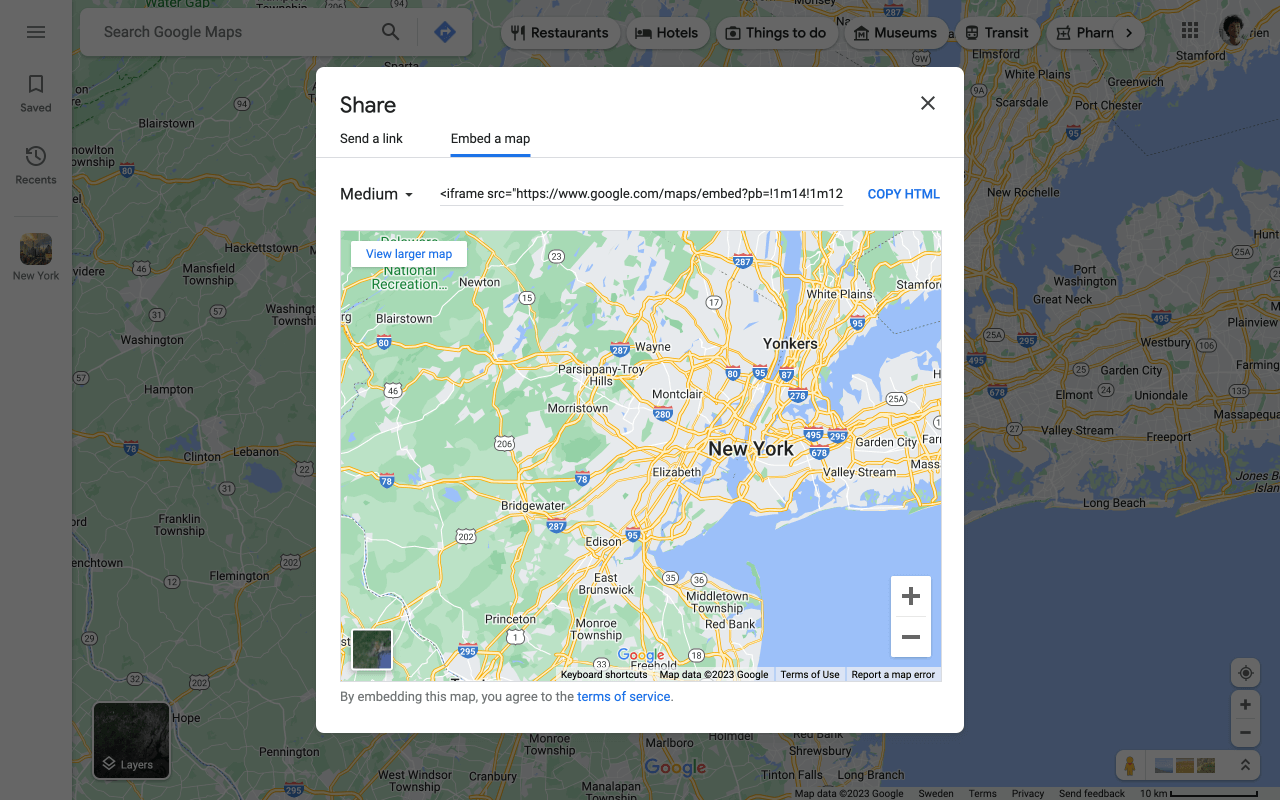
The finished code should look like this. The src value will be longer:
<iframe src="https://www.google.com/maps/embed?pb=..."
  title="Map showing Example Bakery, 12 High Street, Leeds"
  width="600" height="450" loading="lazy"></iframe>
The address text in step 5 matters more than people think. The W3C’s accessibility technique H64 uses the iframe title to name the frame. A screen reader user learns there is a map, but can’t read the street name from it. Search engines index your page text, not the map tiles. So put the address, phone number and opening hours in text, and add LocalBusiness structured data if you use an SEO plugin that supports it.
If you would rather not do this yourself, SiteSelf can add the embed and the address text to your WordPress pages through chat, then fetch the live page and report what changed. Pages owned by Elementor, Divi or Beaver Builder are refused, and the Google account side stays with you.
This depends on your theme. Go to Appearance. If you see Widgets, your theme has widget areas. If you only see Editor, you have a block theme, and the sidebar and footer are template parts you edit in the Site Editor. Our guide to editing the footer in WordPress explains both paths.
Both paths accept a Custom HTML block, so the iframe method above works there too. Keep the map small. A 300-pixel-wide map in a sidebar is enough to show where you are, with a “Get directions” link under it.
If you want the plugin whose name matches the search, Maps Widget for Google Maps, know one thing first. It shows a static thumbnail and opens the interactive map in a lightbox when clicked, and it was built for the classic widgets screen. The plugin’s support forum says it does not work with the block-based widget editor. It recommends installing the official Classic Widgets plugin or switching to a map block. If you manage many sites, that choice will come up again and again.
Plugins that load Google’s interactive maps need a key from Google Maps Platform. The steps below cover most of them. Always follow your plugin’s list of required APIs, because each plugin needs different ones.
https://example.com/*, https://www.example.com/* and https://staging.example.com/*. A wildcard such as *.example.com/* covers subdomains but not the bare domain, so add both.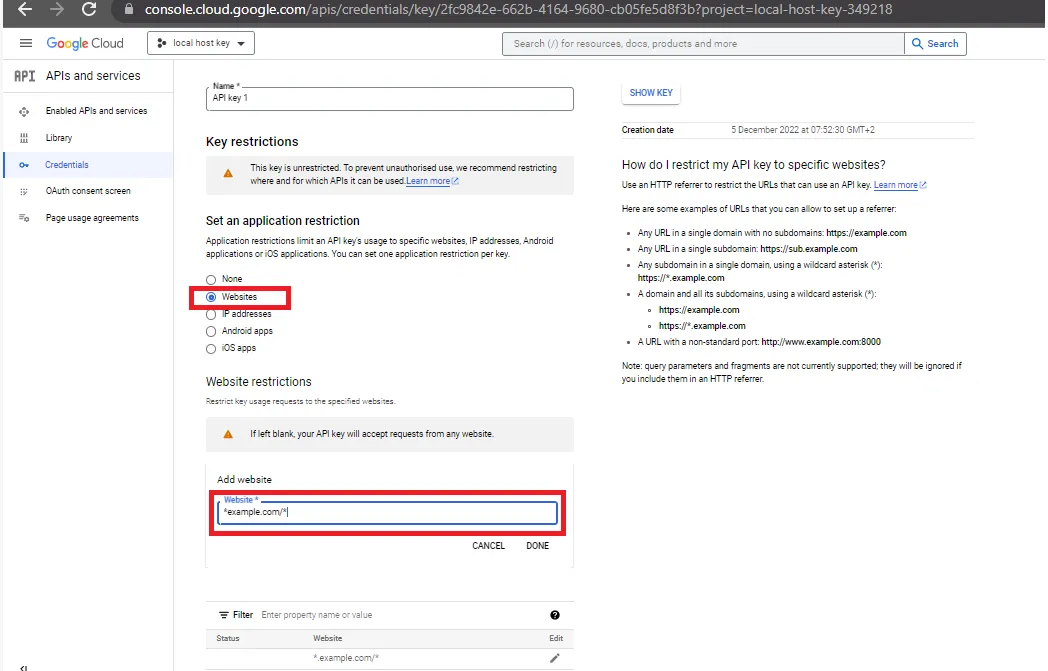
If you loosen a restriction to test, put it back afterwards. A browser key with no restrictions can be copied from your page source and used on anyone’s site, and your billing account pays for it.
For most small sites, nothing. You still have to add billing details. Google’s March 2025 pricing change replaced the old $200 monthly credit with a free monthly usage threshold for each SKU, from March 1, 2025. Guides written before then that mention the credit are out of date.
Google’s Maps Embed API billing page says that API is free for unlimited requests, but it still needs a key and a billing account. The Maps JavaScript, Static, Places and Geocoding APIs charge for usage above their free thresholds. Sites with many listings or address lookups on every page view are the ones that run up bills. Set a daily quota on each API in the Cloud console so a traffic spike stops the map rather than running up the bill.
If you don’t want to manage any of this, choose an engine that doesn’t use Google. WP Go Maps offers Google, Leaflet and OpenLayers engines. MapPress describes itself as “Free, no API key, no setup” and supports Leaflet, OpenStreetMap and Mapbox as well as Google. You give up Google’s familiar map style and some of its place data. In exchange there’s no key, no project and no bill.
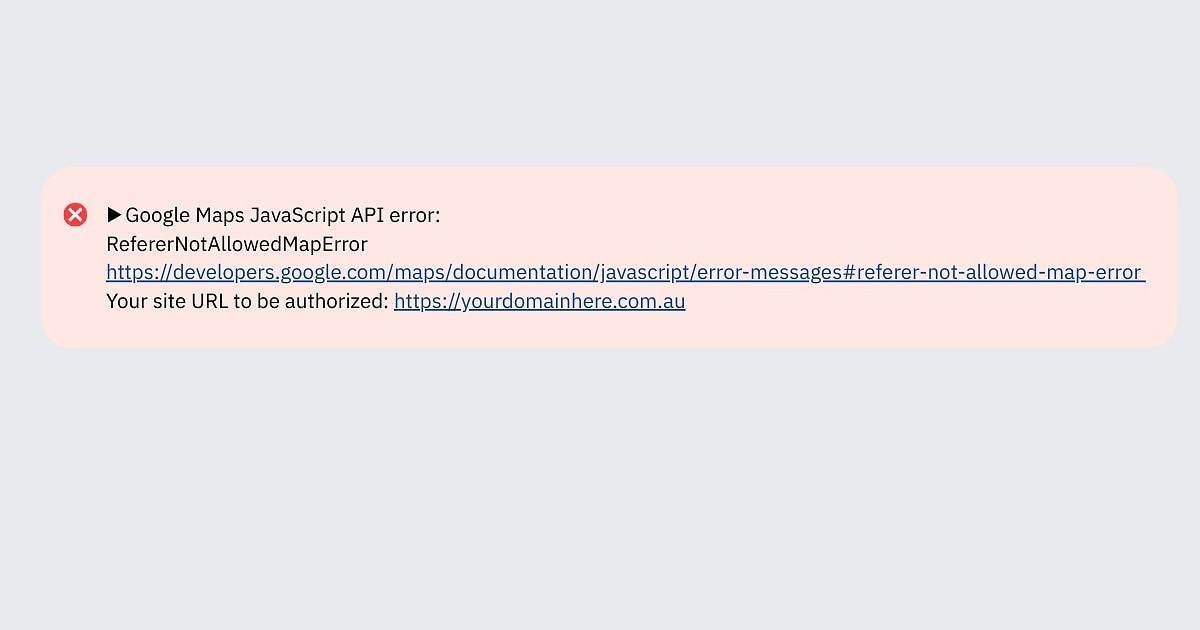
Open the page, press F12, and look at the Console tab. Google writes a named error there, and each name points to one setting. Google’s error messages reference lists them all. The table starts with the most common ones.
| Console error | What is wrong | Fix |
|---|---|---|
MissingKeyMapError, InvalidKeyMapError | No key, or the wrong key, in this plugin’s field | Paste the right key into the plugin that draws the map |
BillingNotEnabledMapError | No billing on the project that owns the key | Attach billing to that project, not a different one |
ApiNotActivatedMapError | The API the plugin calls is not enabled | Enable it in the key’s project |
ApiTargetBlockedMapError | The key’s API restriction leaves that API out | Add the API to the key’s allowed list |
RefererNotAllowedMapError | The page’s URL is not in the referrer list | Add the missing hostname (www, non-www, staging), then wait |
OverQuotaMapError | A usage limit was reached | Wait for the daily reset or raise your own quota |
A key that works on one domain and fails on another is almost always a referrer problem. Adding billing doesn’t fix a wrong key, and a correct key doesn’t turn on an API you haven’t enabled. Each is a separate setting.
If there’s no Google error, the problem is on the WordPress side. Check these in order:
wp_footer() in footer.php drops the scripts many plugins add at the bottom of the page.To test for a conflict on a live site, use the Health Check plugin’s troubleshooting mode. The WordPress support handbook explains that it turns off plugins and switches to a default theme for your logged-in session only. Visitors see the normal site. Then turn plugins back on one at a time. Our guide to fixing plugins that stop working covers that routine in detail.
Get a developer or your host involved if all three of these are true: the console shows no Google error, Health Check troubleshooting mode with every plugin off still shows a blank map, and the map works on a default theme but not on yours. The problem is then in the theme’s code. Get help too if you need the map to write to other systems, such as putting a selected pickup store’s address into a WooCommerce order. That needs custom code using the plugin’s hooks.
A map plugin is code on your site like any other plugin, and map plugins have needed security fixes. Keep them updated, and delete any you’ve stopped using. An iframe embed has no plugin code to update, which is another reason it suits a single location.
Speed is the other ongoing cost. An interactive map loads Google’s script and map tiles from outside your site. Put it only on the pages that need it, and use lazy loading or the thumbnail-and-lightbox approach so the map doesn’t load until a visitor needs it.
Not for the share-link embed you copy from Google Maps and paste into a Custom HTML block. You do need one for plugins or builder widgets that load Google Maps Platform APIs. Plugins running OpenStreetMap or Leaflet engines don’t need a Google key.
Use a block in page content, a block or widget in sidebars and footers, and a shortcode in places that accept neither, such as some builder text modules. Many map plugins offer all three. Check whether a widget was built for the classic widgets screen before you rely on it in a block theme.
Google adds that watermark when the key or billing fails its checks. The console usually names the reason, most often billing missing from the key’s project or an API that isn’t enabled. Fix that setting, wait a few minutes, and reload.
The client. They create the project, attach their own billing, and add the developer as a user. Charges then go to the business that uses the map, and access stays with the client if the developer moves on.
Mapping your own stores is different from mapping where buyers live. Showing customer addresses, even roughly, raises privacy questions. Check with whoever handles your privacy policy before you publish one.
How-to Tutorials
A WordPress homepage can be a static page, a feed of your latest posts, a block theme template, a classic theme file or a page builder layout. Each one is edited in a different place. Find out which one your site uses first and the edit itself is quick. Skip that step and you can spend an hour changing something visitors never see.
Read article ›How-to Tutorials
Updating a WordPress theme takes one click under Dashboard, then Updates. Nearly everything that goes wrong comes from the site around that click: custom code edited into the parent theme, a license tied to the wrong domain, file permissions, or no way back. Answer three questions before you update and most failures never happen.
Read article ›How-to Tutorials
SEO on WordPress comes down to a short list of settings you get right once, a check that those settings reached the live site, and then the slow work of making pages people want. A plugin handles the configuration. It does not rank anything for you, and a green score is not proof that Google can see your pages.
Read article ›Connect the site you already have, add your agent to Slack or Telegram, and tell it what you need.
Connect your siteStart with 500 free credits. No credit card needed.