Key takeaways
- Test on a second device and on mobile data before anything else. If only one browser or network fails, the site is probably fine.
- If the site loads over http:// but fails over https://, the server is not serving TLS on port 443 for that hostname. That fix belongs to your host.
- Switching the WordPress Address and Site Address to https, or turning on a force-HTTPS plugin, before the host serves HTTPS is a common way to lock yourself out of wp-admin.
- Behind Cloudflare, use Full (strict) only once the origin has a valid certificate for the exact hostname. Flexible with an origin that forces HTTPS causes a redirect loop, which is a different error.
- Mixed content is a separate cleanup you do after HTTPS loads. It does not explain a failed handshake.
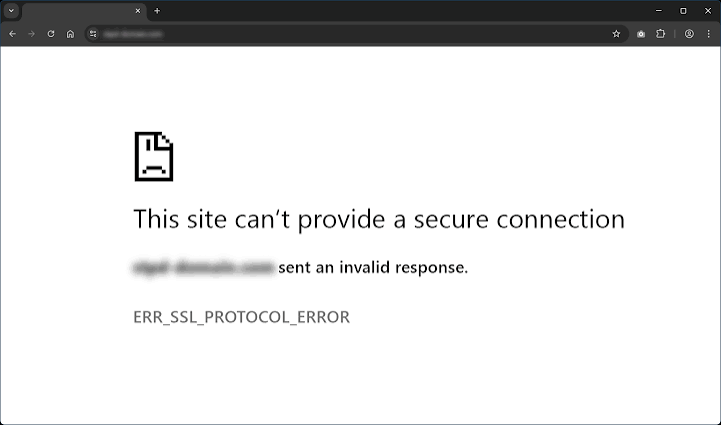
Chrome and Edge show ERR_SSL_PROTOCOL_ERROR under the heading “This site can’t provide a secure connection”, usually with the line “[your domain] sent an invalid response.” The browser asked for an encrypted connection and got back something it could not use. Firefox reports the same failure as “Secure Connection Failed”, PR_END_OF_FILE_ERROR or ssl_error_rx_record_too_long. Safari says it “can’t establish a secure connection to the server.”
The failure happens before WordPress loads, so it never reaches your theme or plugins. That is why the usual WordPress habits don’t help here: disabling plugins, clearing the page cache or reinstalling core. The job is to find which layer broke: the server, a CDN in front of it, a redirect that WordPress sends visitors to, or the visitor’s own device. If your browser shows a different handshake message, the closely related guide on fixing SSL handshake failed on WordPress covers that case.
What the error tells you, and what it doesn’t
The error tells you the TLS handshake failed. The handshake is the short negotiation where browser and server agree on encryption before any page is sent. WooCommerce’s documentation describes the typical case: the browser expects TLS on an HTTPS connection, and the server sends something else, often plain HTTP. It blames server configuration rather than WordPress settings, and names SSL certificate setup, port settings and the VirtualHost for port 443.
The error does not, on its own, prove your certificate expired. An expired or misnamed certificate usually gets its own warning, such as “Your connection is not private”, because the browser got far enough to read the certificate. Write down the exact error text before you change anything. Different messages point to different fixes.
Is it only you, or everyone?
Answer this first, because it tells you which half of the problem you’re in. Open the site in a private window, then on a phone using mobile data with Wi-Fi off. If you can, ask someone in another location to try it too.
| What you see | Where the fault probably is | First move |
|---|---|---|
| Fails on every device and network | Server, host or CDN | Ask the host to check HTTPS on port 443 (next section) |
| http:// loads, https:// fails | No working HTTPS at the host | Get the certificate installed and active at the host |
| Started right after you changed WordPress URLs to https | WordPress is sending visitors to an HTTPS address the server can’t serve yet | Restore access, then fix the host side |
| Works without www, fails with www (or the reverse) | Certificate or virtual host missing one hostname | Check both hostnames separately |
| Fails on one laptop, one browser or one office network | Antivirus HTTPS scanning, VPN, clock, browser state, corporate proxy | Fix the device or network, not the site |
The usual cause: port 443 isn’t speaking HTTPS
When the error appears everywhere, the most common explanation is that the server is not serving HTTPS correctly for that hostname. Either no certificate is installed, the certificate isn’t active, port 443 is answering in plain HTTP, or the HTTPS virtual host in Apache or Nginx is missing or points somewhere wrong. A WordPress.org support thread from March 2024 followed this pattern exactly. The site worked over HTTP, failed over HTTPS, and the volunteers sent the owner to the host’s server configuration.
If you have a terminal, you can see what the server actually sends:
curl -vI https://example.com
openssl s_client -connect example.com:443 -servername example.com
Run both again for www.example.com. If openssl complains about a wrong version number, or curl fails before it shows any certificate details, something on port 443 is answering in plain HTTP. The browser isn’t at fault, and no WordPress change will repair it.
If you don’t have shell access, this is a host ticket. Ask the host to confirm four things for both the www and non-www hostnames:
- A certificate is installed, active and current, and it covers that exact hostname.
- The intermediate chain is installed along with the site certificate.
- Port 443 serves TLS through the correct virtual host and document root.
- The TLS configuration uses current protocol versions.
On many hosts the fix is a toggle. In one owner-confirmed case on Reddit, an IONOS site broke after an All-in-One WP Migration export because SSL simply hadn’t been enabled for the domain at the host. Enabling it fixed the site.
Why switching WordPress to HTTPS can lock you out
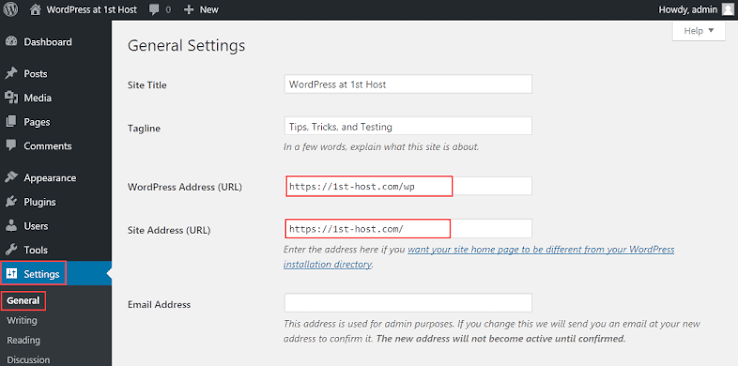
Changing the URLs in WordPress does not create HTTPS. WordPress’s own HTTPS handbook says WordPress works over HTTPS once a certificate is installed and available to the web server, and that the secure virtual host has to be configured before you force the admin onto HTTPS. In a March 2025 WordPress.org thread, an owner thought the site had a certificate, switched both URLs in Settings → General to https, and lost the site and the admin together.
This is the one place WordPress is involved. WordPress isn’t causing the failure. It is sending every visitor, you included, to an address the server can’t serve yet. The same thing happens with a force-HTTPS plugin, a FORCE_SSL_ADMIN line in wp-config.php, or an HTTPS rule in .htaccess.
To get back in while the host fixes HTTPS:
- Through SFTP or the host’s file manager, add these lines to
wp-config.phpabove “That’s all, stop editing”, using your real domain:define( 'WP_HOME', 'http://example.com' ); define( 'WP_SITEURL', 'http://example.com' ); - Comment out any
FORCE_SSL_ADMINline in the same file. - If a force-HTTPS plugin is active, rename its folder in
wp-content/pluginsso WordPress deactivates it. - Remove any HTTPS redirect you added to
.htaccess.
Logging in over plain HTTP sends your password unencrypted. Do it only as long as you need to, and change the password once HTTPS works. Once the host confirms HTTPS, remove the two lines. Then go to Tools → Site Health. Since WordPress 5.7, Site Health detects whether HTTPS is supported and can switch both URLs for you.
After a migration or domain change
Moves are a frequent trigger, because a new server or a new domain often has no working certificate on day one. Several layers can also redirect at the same time: the host’s force-www option, Cloudflare, .htaccess and an SSL plugin. Check the certificate, DNS and redirects together, not one at a time.
Get the certificate working for the new domain first. Then set the WordPress Address and Site Address to match it, and only then replace the old URLs stored in the database. Use a serialization-safe tool for that. WP-CLI’s wp search-replace handles serialized data and has a --dry-run flag that shows what would change before anything does. The guide to changing a WordPress site’s domain safely covers the full sequence.
Behind Cloudflare, match the mode to the origin
A CDN adds a second place for things to break. Cloudflare has its own certificate at the edge, and an active edge certificate says nothing about the server behind it.
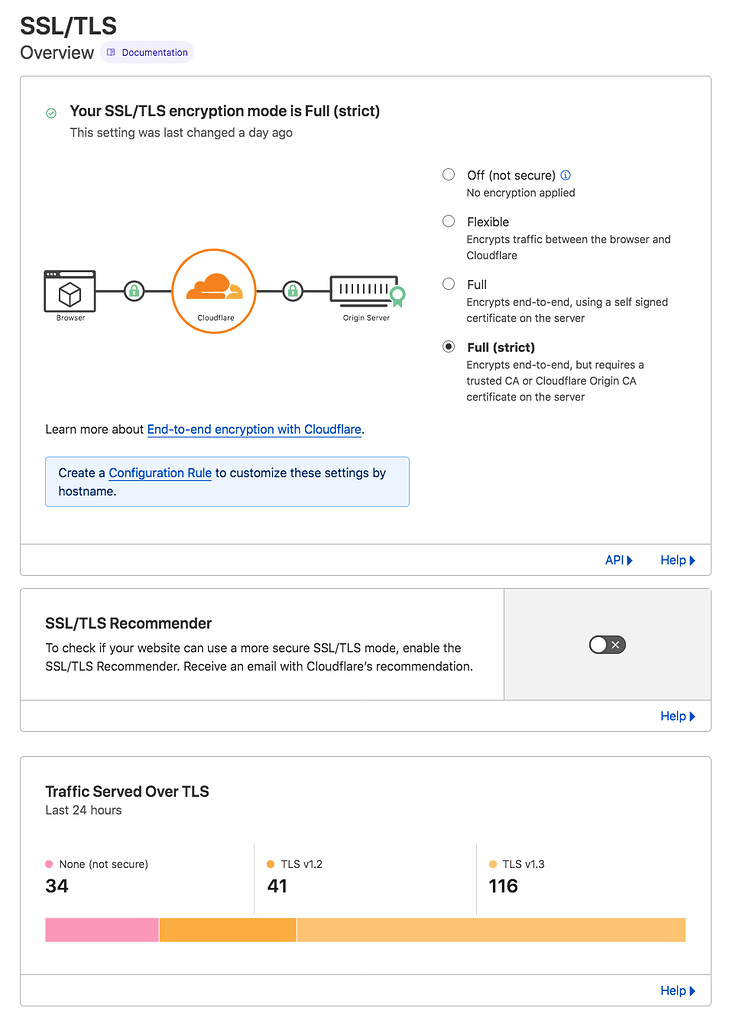
- Flexible sends traffic from Cloudflare to your server over plain HTTP. If your server or WordPress forces HTTPS, the two bounce visitors back and forth. Cloudflare documents that as a redirect loop, which shows up as ERR_TOO_MANY_REDIRECTS, not this error. The guide to why WordPress is not loading covers that loop.
- Full (strict) requires your server to accept HTTPS on port 443 and present a valid certificate that matches the hostname. Fix the origin first, then choose this mode.
Cloudflare’s troubleshooting page for this error also covers intermittent failures. These can involve HTTP/3 (QUIC), TLS inspection, antivirus software and corporate networks. Cloudflare suggests turning off HTTP/3 or TLS 1.3 only as a temporary test to narrow the cause. Turn them back on once you have your answer.
When it fails for one visitor only
If the site loads everywhere except one machine or one network, leave the site alone. Check, in this order:
- The device’s date, time and time zone.
- A VPN, which you can switch off for a test.
- Antivirus HTTPS scanning, which you can pause briefly to retest and then switch back on.
- Browser extensions and stale browser state. A private window skips most of both.
- A corporate proxy or filter, which only that network’s IT team can change.
Security software can block one visitor while everyone else gets through. In a February 2025 WordPress.org thread, the host confirmed the certificate was active. A subscriber’s Malwarebytes Premium was blocking the site, and the vendor was the one who had to lift the block.
When checkers show green but many visitors still fail
This is the hardest case, and community threads about it often end without a confirmed fix. An SSL checker reports a valid certificate, yet a group of visitors on one network keeps failing. Hosts tend to blame the network. Visitors can’t all be wrong at once.
The error shows you where visitors run into the problem. The cause can sit somewhere else. Ask the host about recent TLS version or cipher changes, server load and connection limits around the times of the failures. Send them the exact times and the affected networks. A vague description gets you the standard “clear your cache” reply.
Once HTTPS loads, clean up behind it
Two jobs come after the handshake works. First, mixed content. Some images, scripts or stylesheets may still load over http:// and show a “not secure” warning on certain pages. Product and cart pages often keep these after the homepage looks clean. Find them in the browser’s developer tools console and update the stored URLs with a dry run first. Mixed content does not cause ERR_SSL_PROTOCOL_ERROR. It is the next problem after this one.
Second, redirects. Keep one permanent server-side redirect from HTTP to HTTPS, not three competing ones from the host, a plugin and the CDN. The guide to setting up .htaccess 301 redirects includes a single-hop rule to add only after HTTPS works at the host.
When to stop and get help
Stop changing WordPress once the error shows up on every device and network and the site still fails over https://. From that point the fix is a certificate, a listener or a CDN setting, and those live with whoever controls hosting. Send them one message with the hostname, the time, the browser and network you tested from, whether www and non-www behave differently, and any curl or openssl output.
If you’d rather hand off the checks and the WordPress side of the cleanup, SiteSelf does this kind of WordPress troubleshooting through chat. Server and file work needs hosting (SSH) access, and a certificate that only your host can activate still goes back to your host.